





Your team ships a new feature, traffic spikes, and autoscaling does its job. Great — until the bill arrives and it’s three times what anyone expected. By then it’s too late to do anything about it.
Most cloud providers handle this the same way: you find out what you spent after you’ve already spent it. Monitoring tools can help, but they live outside your database console, require separate setup, and still only tell you what happened — they don’t give you a way to act on it.
We think cost controls should be built in, not bolted on. That’s why we’re introducing spending limits for Neon organizations.
What are spending limits?
A spending limit is a monthly dollar threshold you set for your organization. When your spend approaches or reaches that threshold, Neon takes action — today that means email alerts, and soon it will mean the option to automatically suspend project computes.
You set it once, and it works in the background. No external monitoring to configure, no third-party integrations to maintain.
How it works
Setting up a spending limit takes about 30 seconds:
1. Navigate to your organization’s Billing page in the Neon console.
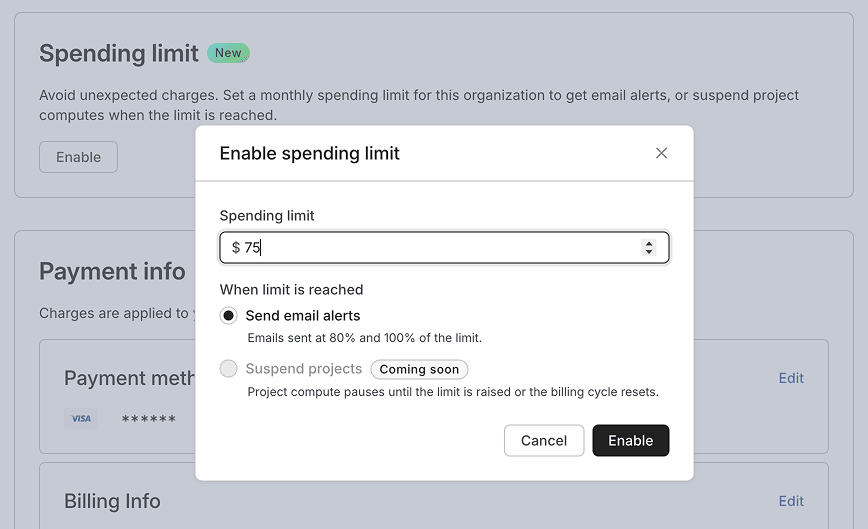
2. Find the Spending limit card and click Enable.
3. Enter a monthly dollar amount.
4. Choose what happens when the limit is reached — Send email alerts is available now, with Suspend projects coming soon.
5. Click Enable, and you’re done.
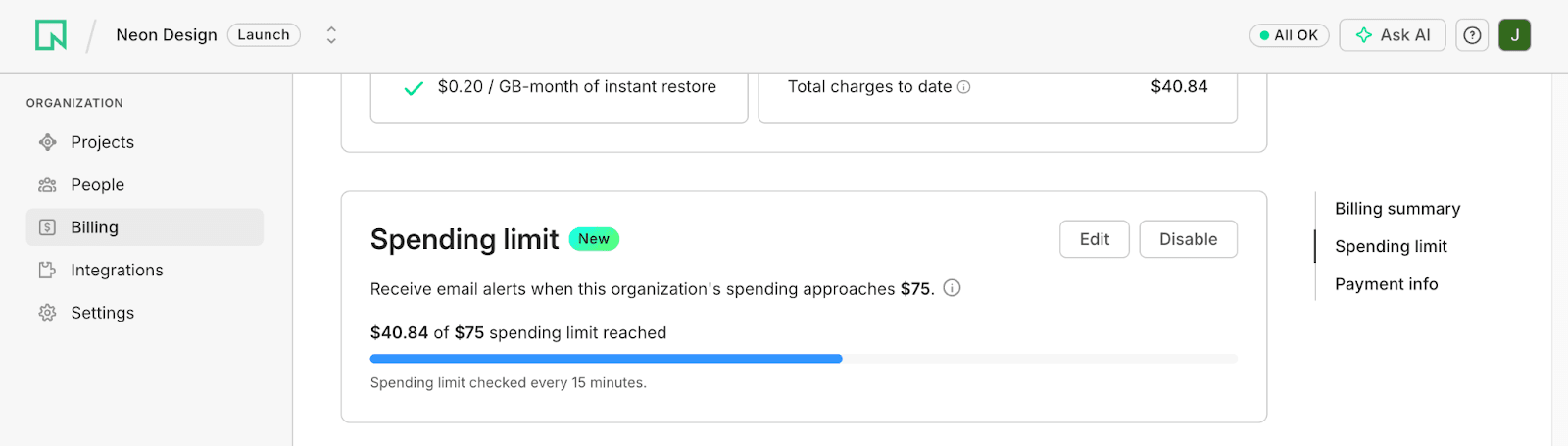
Once enabled, your Billing page shows a progress bar with your current spend relative to the limit. Neon checks your organization’s spend every 15 minutes.
Approaching and exceeding the limit
When your organization reaches 80% of its spending limit, org admins receive an email alert. A second alert fires at 100%. In addition, a banner appears across the Neon console so that everyone on the team has visibility — not just whoever set up the limit.
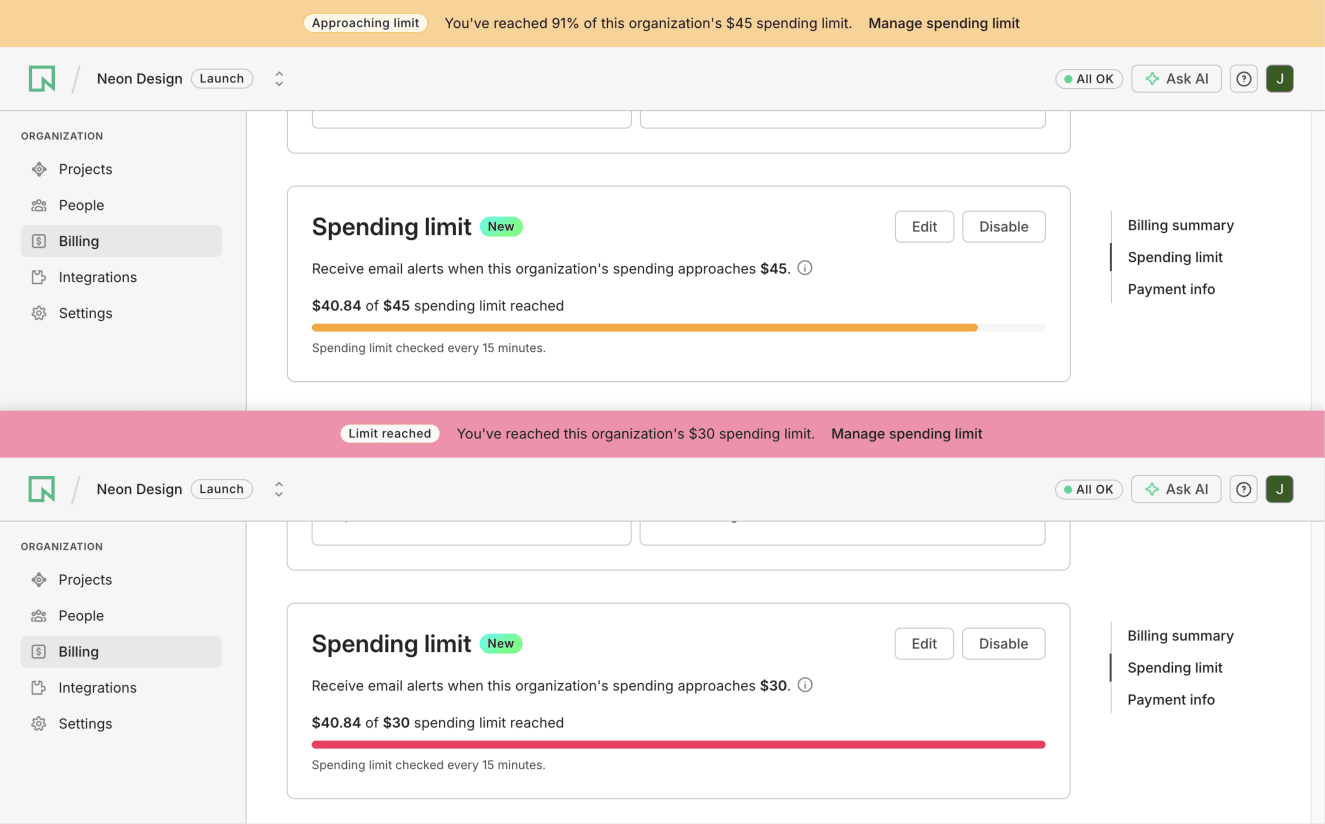
The banner includes a direct link to adjust your limit, so you can react immediately without navigating through the billing page.
Editing or disabling
Org admins can edit the dollar amount or disable the spending limit entirely at any time from the same Spending limit card. Changes take effect on the next 15-minute check cycle.
What’s coming next
Today, spending limits notify you. Soon, they’ll be able to enforce.
The Suspend projects option is already visible in the setup dialog with a “Coming soon” badge. When it ships, reaching your spending limit will automatically pause compute for all projects in the organization — a hard guardrail that prevents runaway costs without requiring anyone to be online to react. Computes will resume automatically when the limit is raised or a new billing cycle begins.
This gives teams two levels of control: alerts for awareness, suspension for enforcement. Use one or both depending on how tightly you need to manage spend.
Get started
Spending limits are available today for all organizations on paid Neon plans. Head to your Billing page to set one up.
Have feedback or questions? Let us know in Discord or check the spending limits documentation for more details.